This walkthrough takes one project from empty to an exported file. The steps are the same in ChatCut Desktop, the web app, and the Agent Plugin; where a surface behaves differently, it is called out. If you have not chosen one yet, just start with ChatCut Desktop.
You need a ChatCut account and, ideally, one video or audio file. If you have no footage, you can still finish this walkthrough by generating a clip in step 3.
1. Open a project
Sign in to ChatCut. If your account has no project yet, ChatCut creates one and opens the editor.
To start another project, select the Home icon at the top left of the top bar, then New project in the project dashboard.
2. Add your media
Open My Assets → Upload and choose Files… or Folder…. The files become project assets you can reuse in every timeline of that project.
You can also attach a file directly in the AI panel with Upload (+). The attachment becomes a project asset directly; see My Assets / Media Pool for the details.
Wait until the asset card finishes processing before using it in generation or export.
3. Describe the edit, then adjust by hand
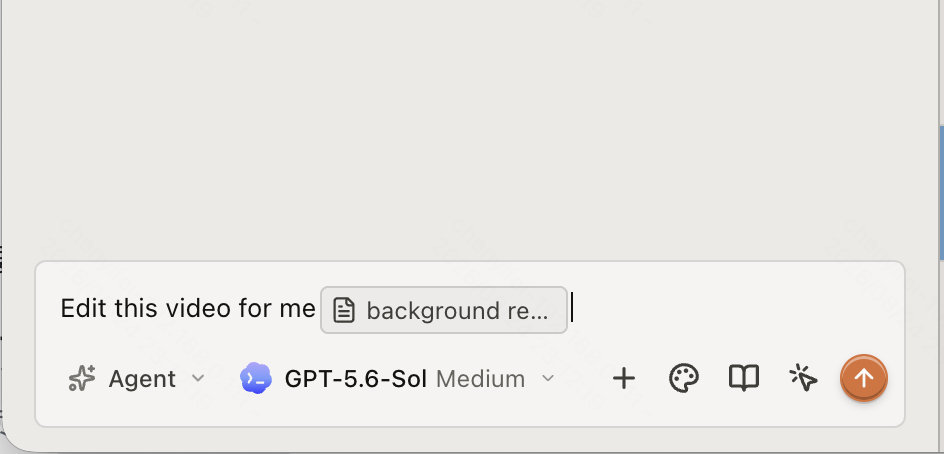
Enter what you want in the Prompt composer at the bottom of the AI panel, then select Send message.
- Most editing work needs ChatCut to read the project and edit the timeline for you — keep the composer in Agent for that, for example, “Cut @interview down to 60 seconds and remove the filler words.”
- Switch to Video Gen when you want to configure and submit one video-generation job instead.
The first time you open a project, workflow cards appear in the empty conversation. Selecting a card only inserts its starter prompt into the composer — it is safe to send.
Manual editing, uploads, and export do not use credits. AI generation and agent work do — see Generation Confirmations and Auto-Allow.
4. Review the result
Agent progress and questions appear in the conversation, new media appears in My Assets, and edits appear in the active Timeline. Play the result in the Viewer and check whether the agent’s output matches what you had in mind; if not, adjust it by hand or follow up in the conversation.
To save the current state before the next round, open Versions and select Save Current Version — we recommend using it often.
5. Export
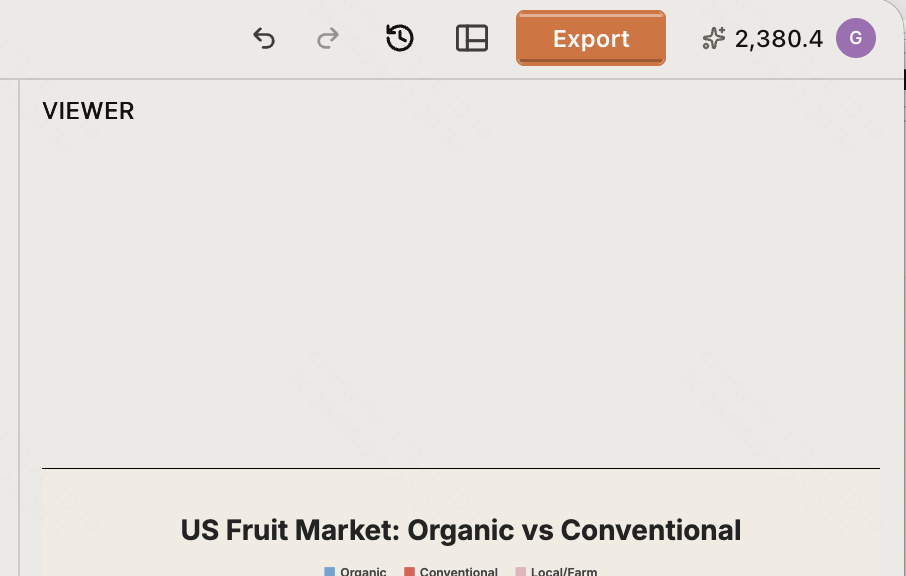
Select Export in the top bar and choose what to deliver: video, audio, subtitles, transparent graphics, or an editable project file for another editor.
The web app and Agent Plugin render in ChatCut’s cloud, so the export waits on a download; ChatCut Desktop renders on your own computer, including 4K and HDR. Both paths can export XML for DaVinci Resolve, Premiere Pro, and Final Cut Pro; the desktop app can also export an editable Jianying draft. See Web vs Desktop Export and Export Panel.
What to read next
- AI Panel Overview — every control in the AI panel and what it changes.
- Editor Layout — a button-by-button tour of the editor.
- Talking Head Edit — the most common first real project.